Overview
The subscription purchase process involves 4 main steps: Plan Selection → Cart → Checkout → Payment Verification
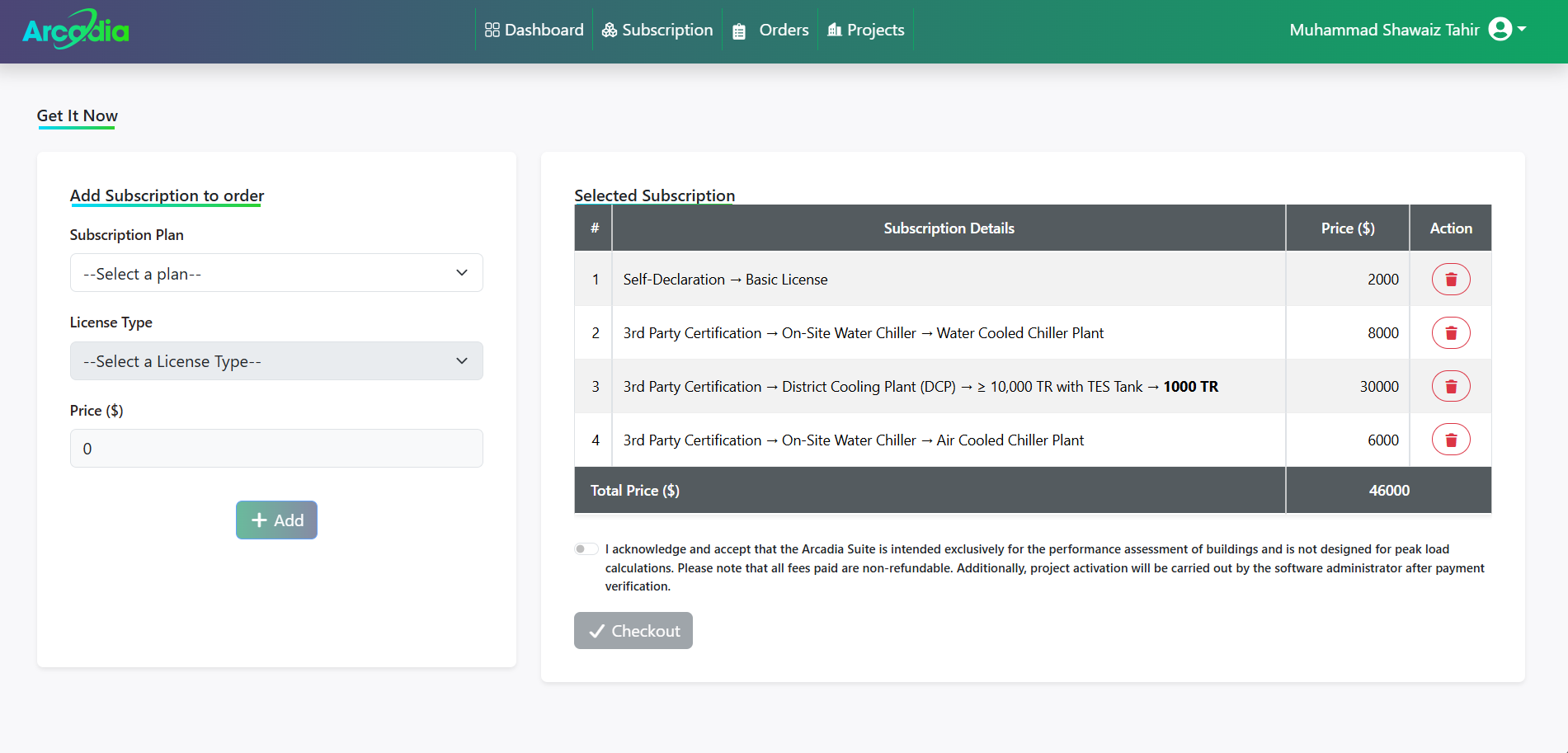
Step 1: Plan Selection & Checkout
Select Your Plan
Browse available subscription plans and click "+ Add" on your chosen package.
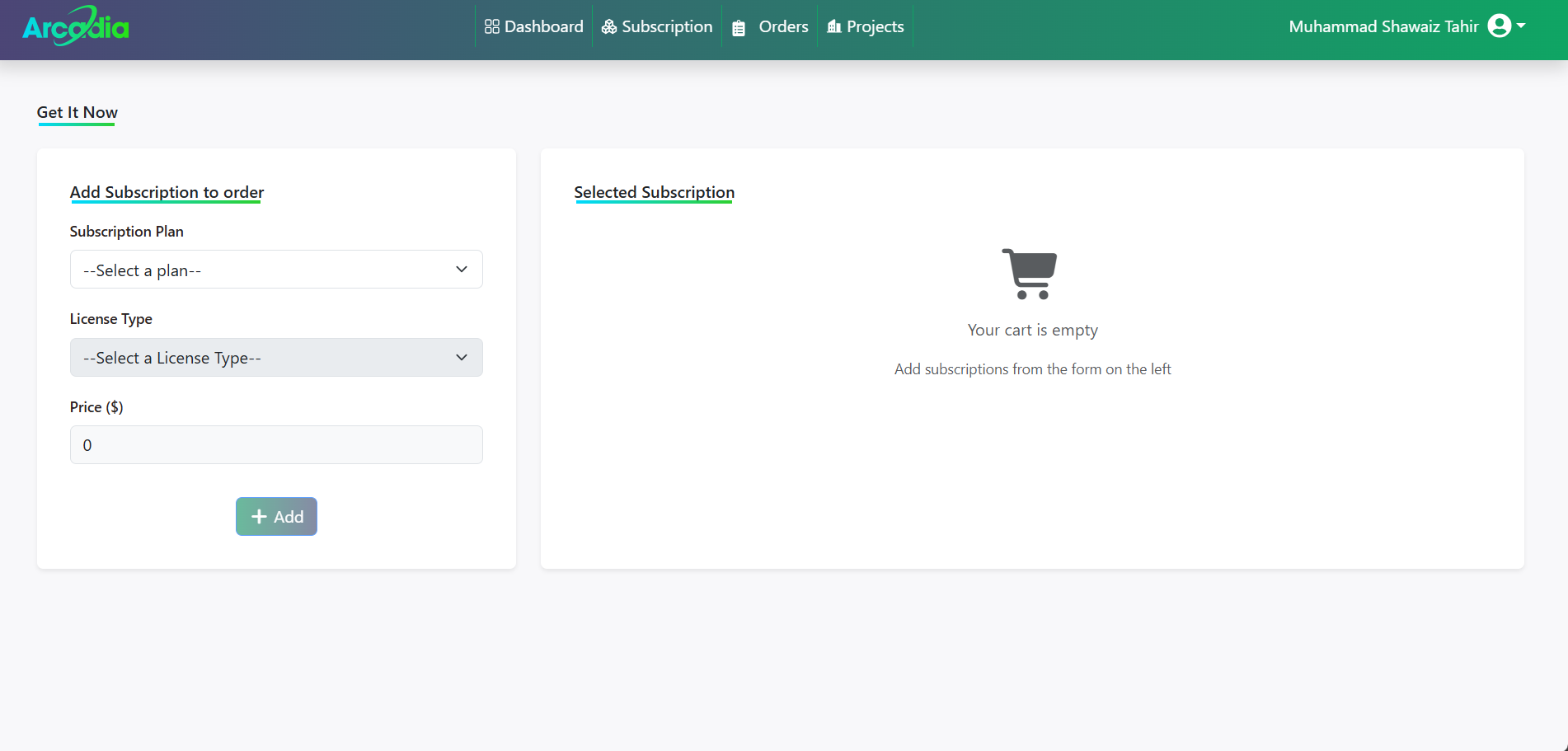
Checkout Button
Click the "Checkout" button to add the subscription to your orders. Read and agree to the terms and conditions before checkout.
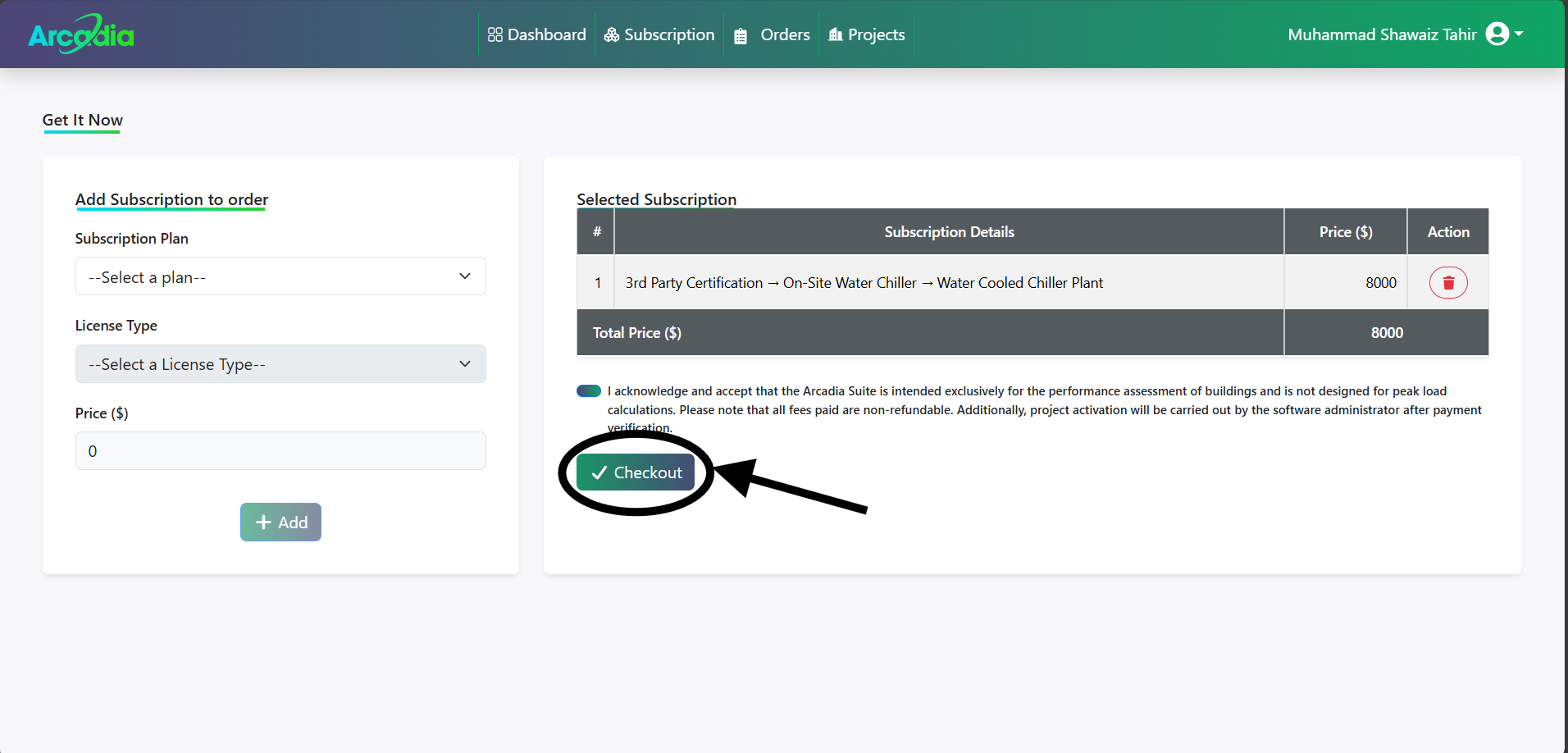
Step 2: Order Placement
Order Confirmation
Your order is created and appears in the Orders tab automatically.
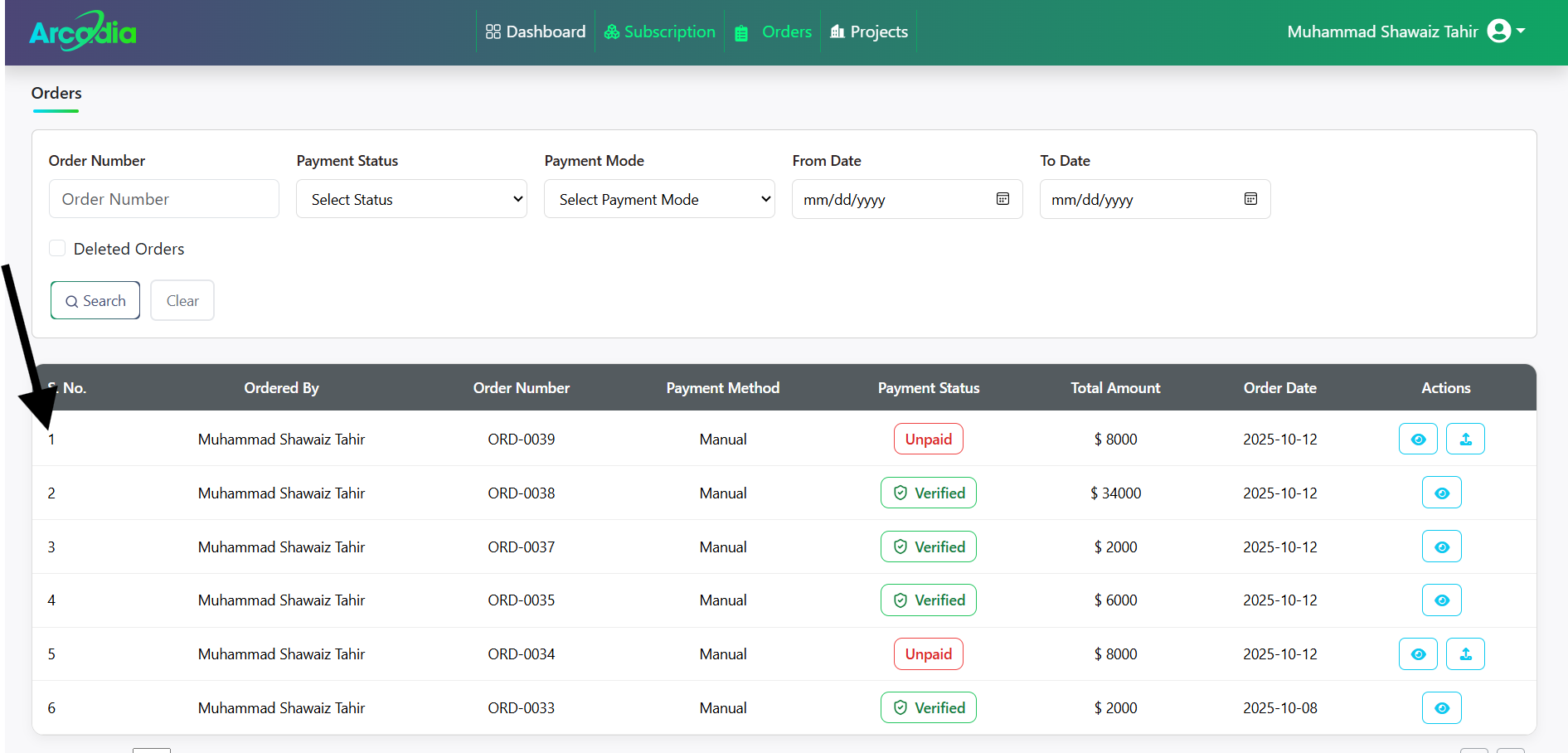
Step 3: Payment Verification
Upload Payment Proof
Upload screenshot or photo of your payment transaction.
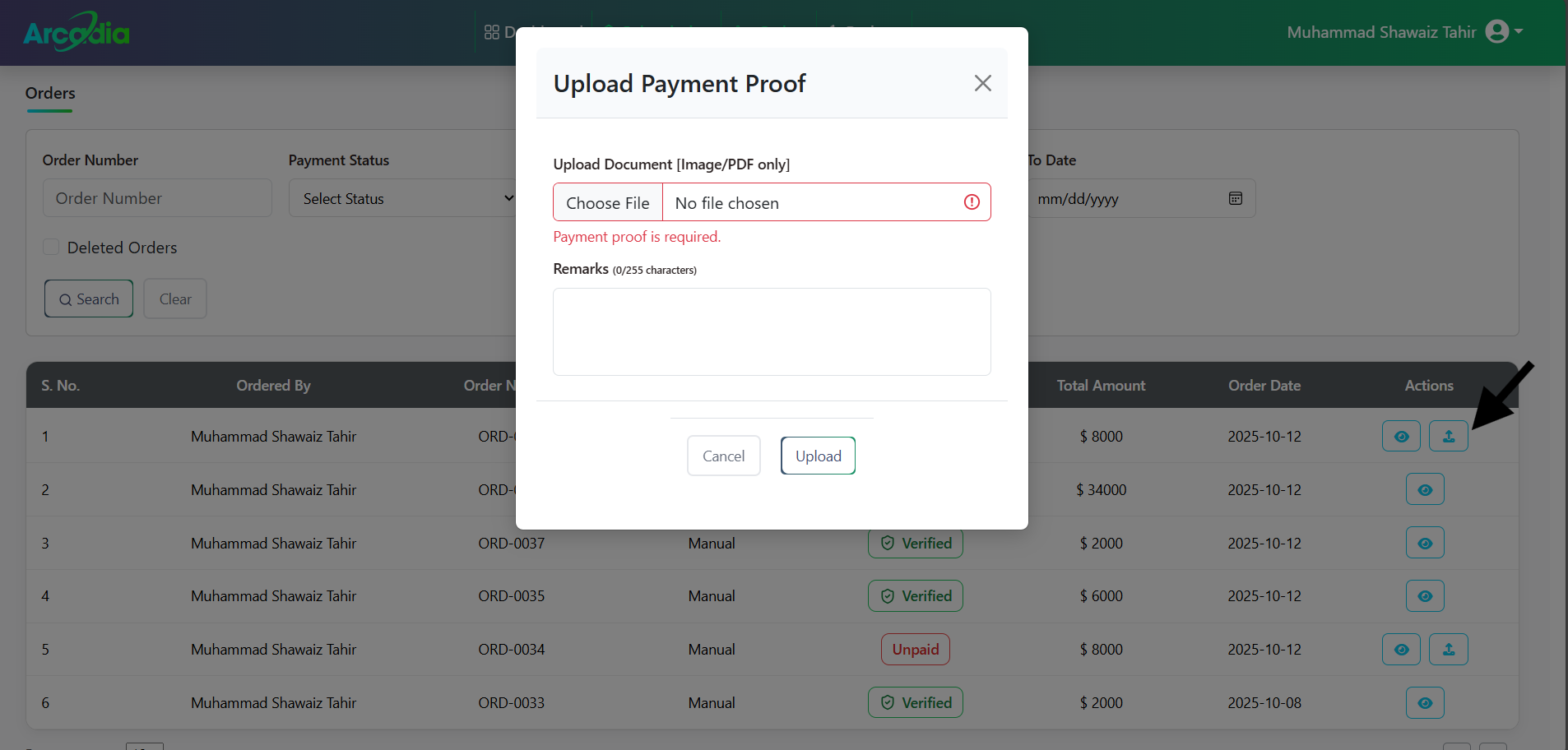
Supported Payment Methods
- Bank transfer receipts
- Online payment screenshots
- Transaction confirmations
- Payment gateway receipts
- Payment proof submitted successfully - awaiting admin verification.
Step 4: Admin Verification
Verification Process
Our admin team verifies your payment within 24 hours.
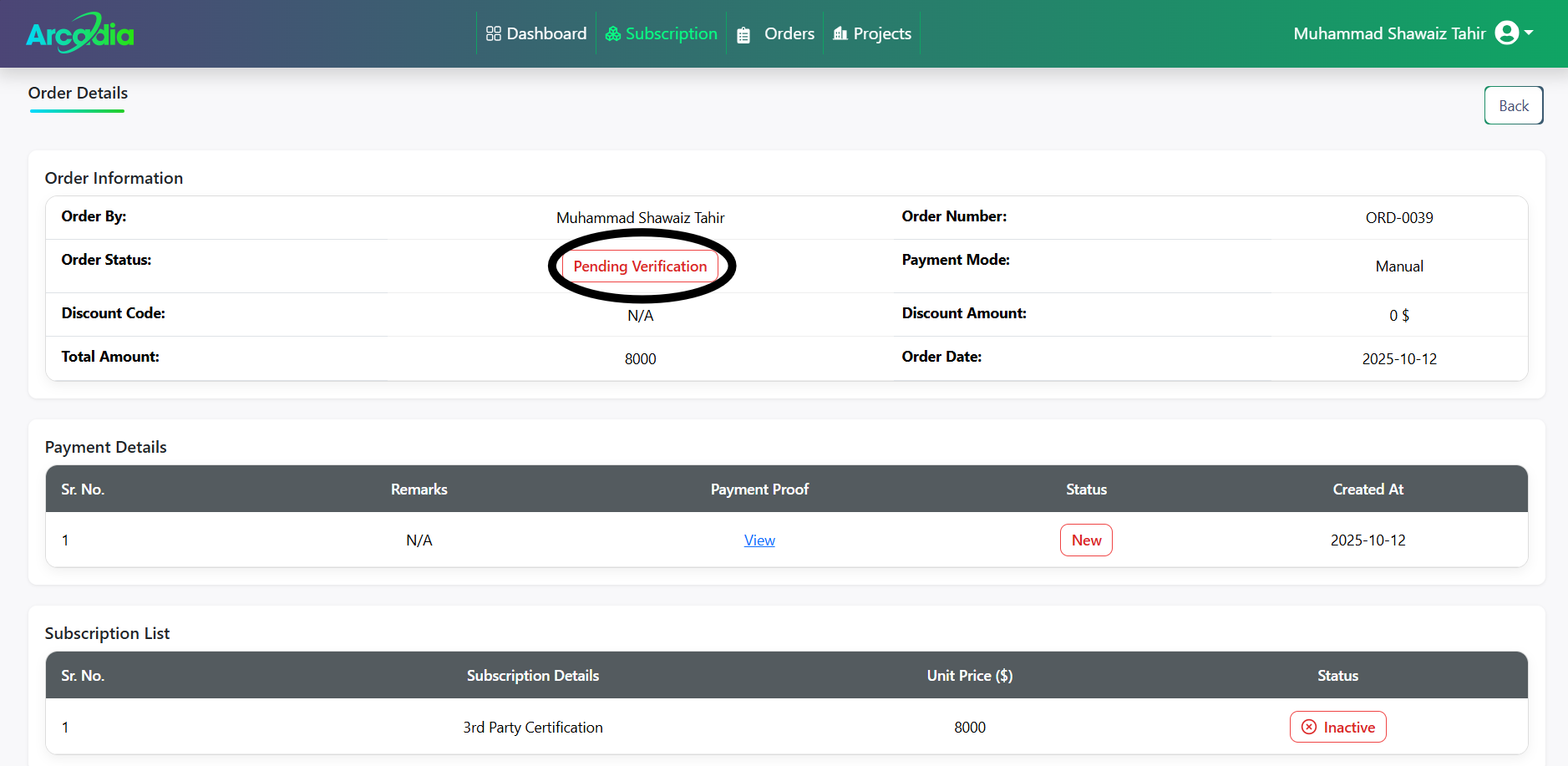
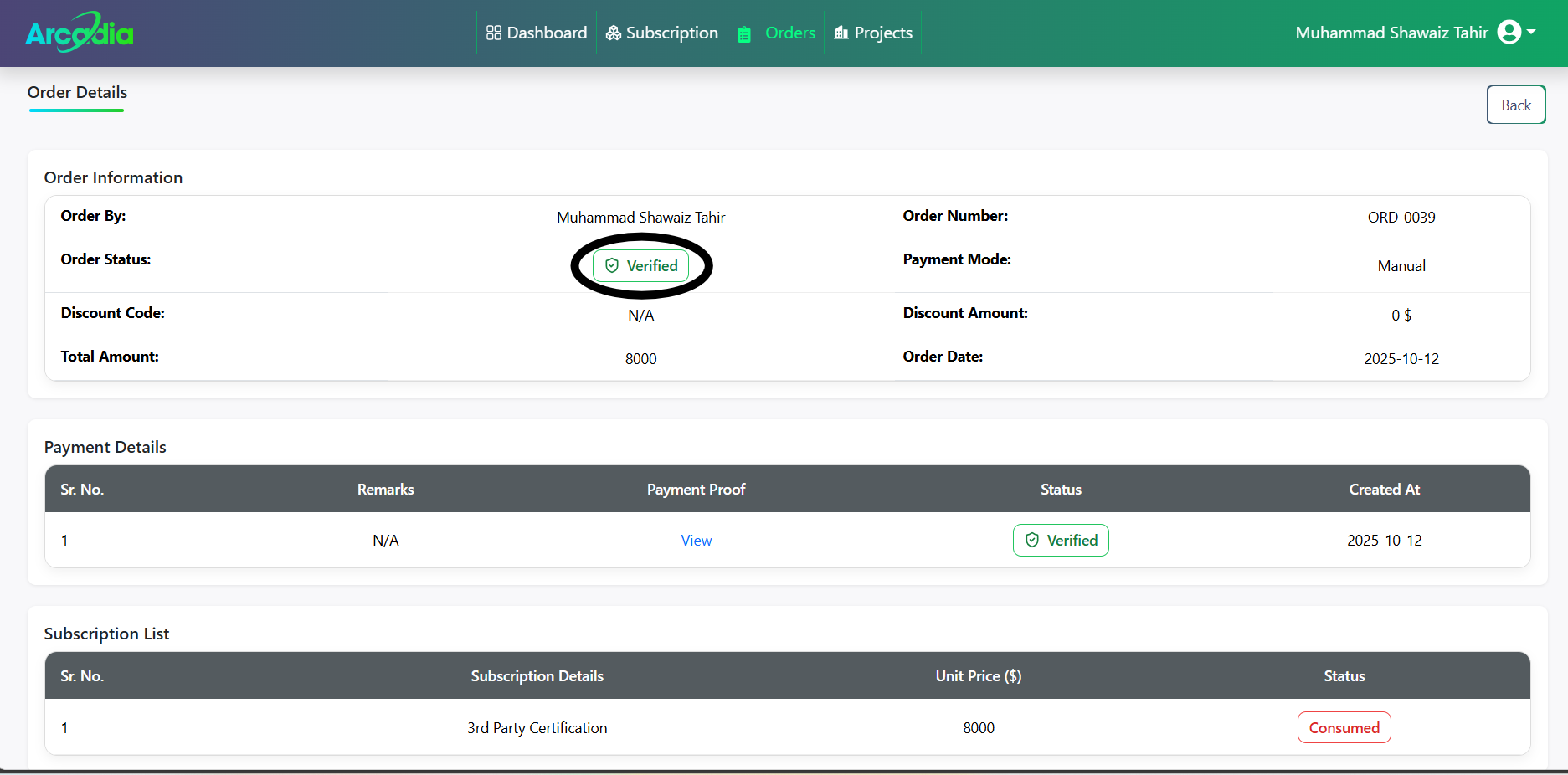
Step 5: Access Granted
Subscription Activated
Once verified, your subscription is activated immediately.
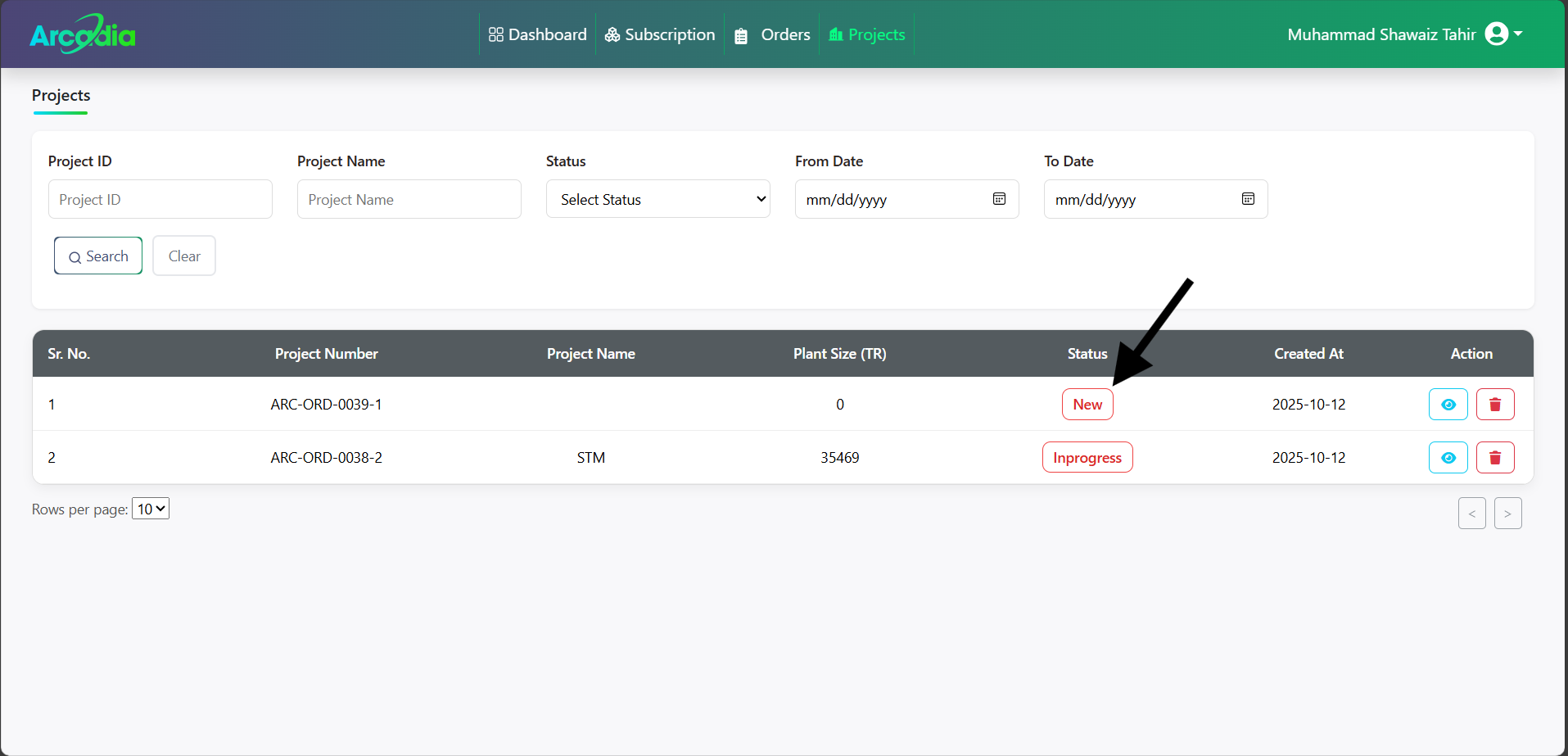
Project Creation Access
You can now create new projects in Arcadia Suite.
Troubleshooting
Common Issues
Payment Not Verified?
- Ensure payment proof is clear and readable
- Include transaction ID and date
- Contact support if verification takes more than 24 hours
Cannot Upload Proof?
- Check file format (JPG, PNG, PDF)
- Ensure file size under 5MB
- Verify internet connection
Order Not Appearing?
- Refresh the Orders tab
- Check your email for order confirmation
- Contact support if issue persists
Support
Need help with your subscription purchase?
- Email: info@gord.qa